 createbooth
Premium event access for premium designs and editing tools.
Start with the right print shape
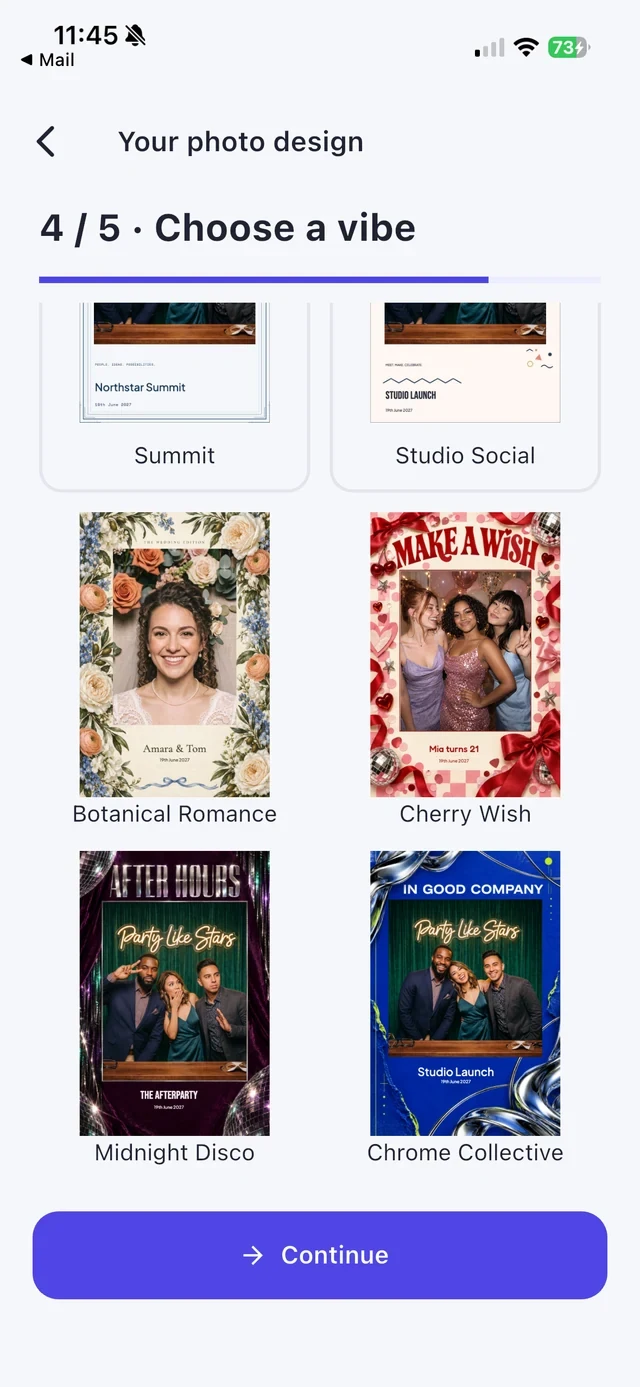
Choose Your photo design during setup. Select the canvas size, portrait or landscape orientation and photo arrangement before spending time on decoration. Choose a designer vibe or Build your own.
Personalise the title
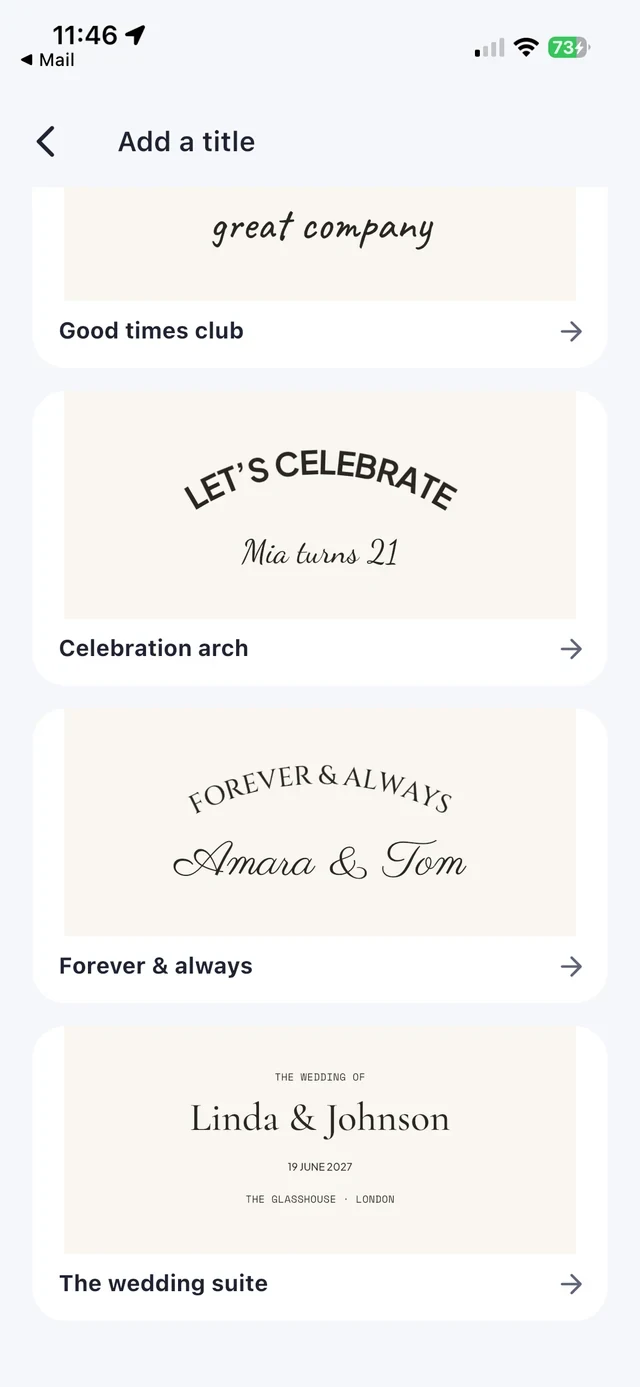
At Make it yours, open the editor. Use Text and the title options to add the event name, a date or a short message. Pick a title design, check its words and apply it. Short titles are easier to read on a small print.
Select before changing
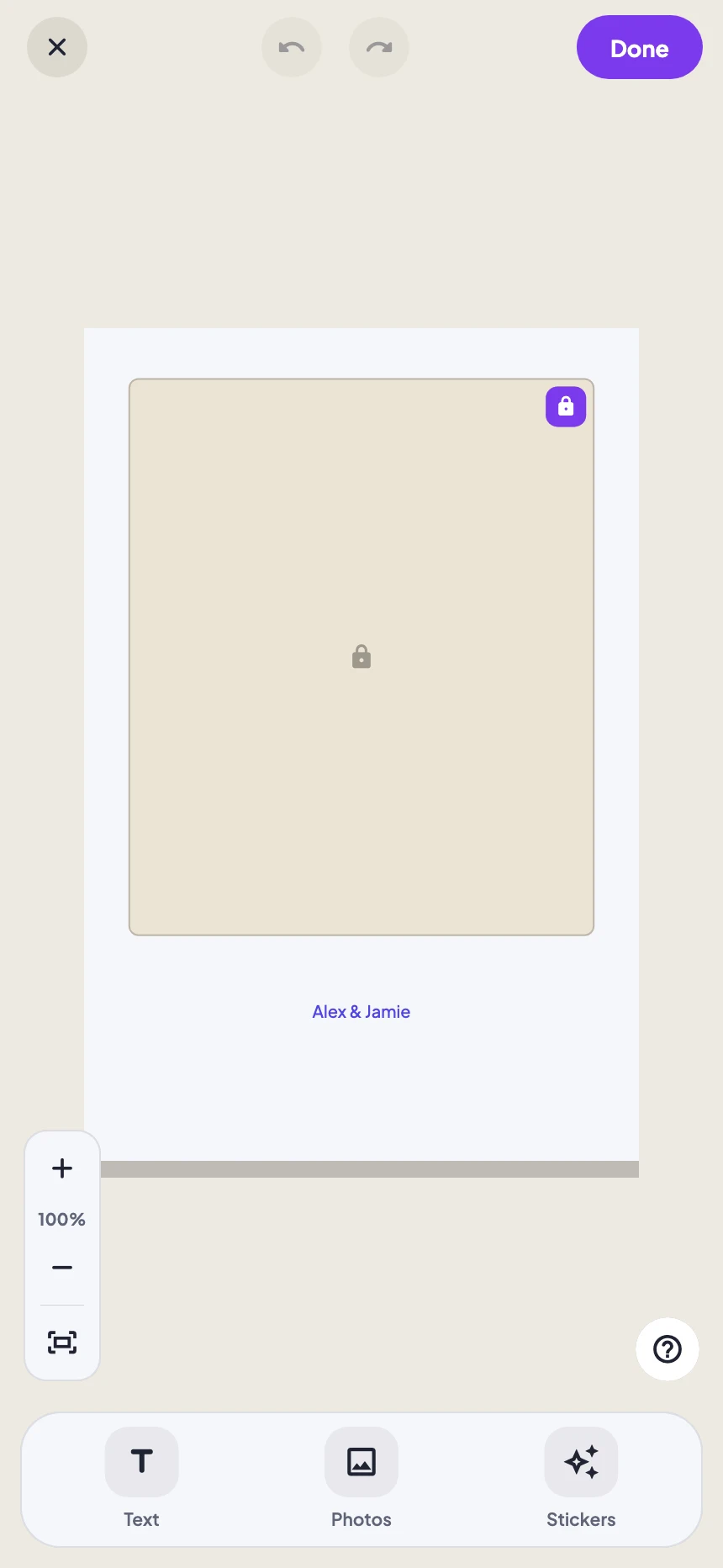
Tap an element on the canvas to reveal its controls. Move it using the handles and use the available size, colour or rotation controls. Photo areas may be locked: unlock the selected photo area before adjusting its placement. Keep faces and important wording away from cut edges.
Add a little decoration
Open Designs (called Stickers in newer editor builds) to browse decorations. Add a few matching details rather than filling every gap. Undo a change if it overlaps a photo or makes the design harder to read.
Save and test the actual result
Tap Done and complete the photo-design step. Take a calibration photo and inspect the finished layout. If printing, check an actual test print for cropping and readable text; the screen preview alone cannot check printer margins.
Real app screens with numbered highlights. Tap Enlarge to inspect a screen. Example content; labels can vary by app version.
The editor screenshot shows the refreshed 2.1 toolbar. On 2.0, decorations may be called Designs and the older Logos entry may still be visible.
Helpful to know.
Artwork and the booth theme are different
Your photo design appears in the finished image. Your booth theme controls the screens guests interact with.
A logo is your own image
Use the separate No template + logo workflow for uploading a logo. The old bundled Logos collection is being retired from the editor.