 createbooth
A PNG or JPEG smaller than 2 MB saved in Photos, and eligible Premium access.
Prepare the logo
Export a clear PNG, ideally with a transparent background, or use a JPEG. Save it in the device’s Photos library. Use artwork you have permission to use; a screenshot of a logo may have an unwanted background.
Choose the logo design route
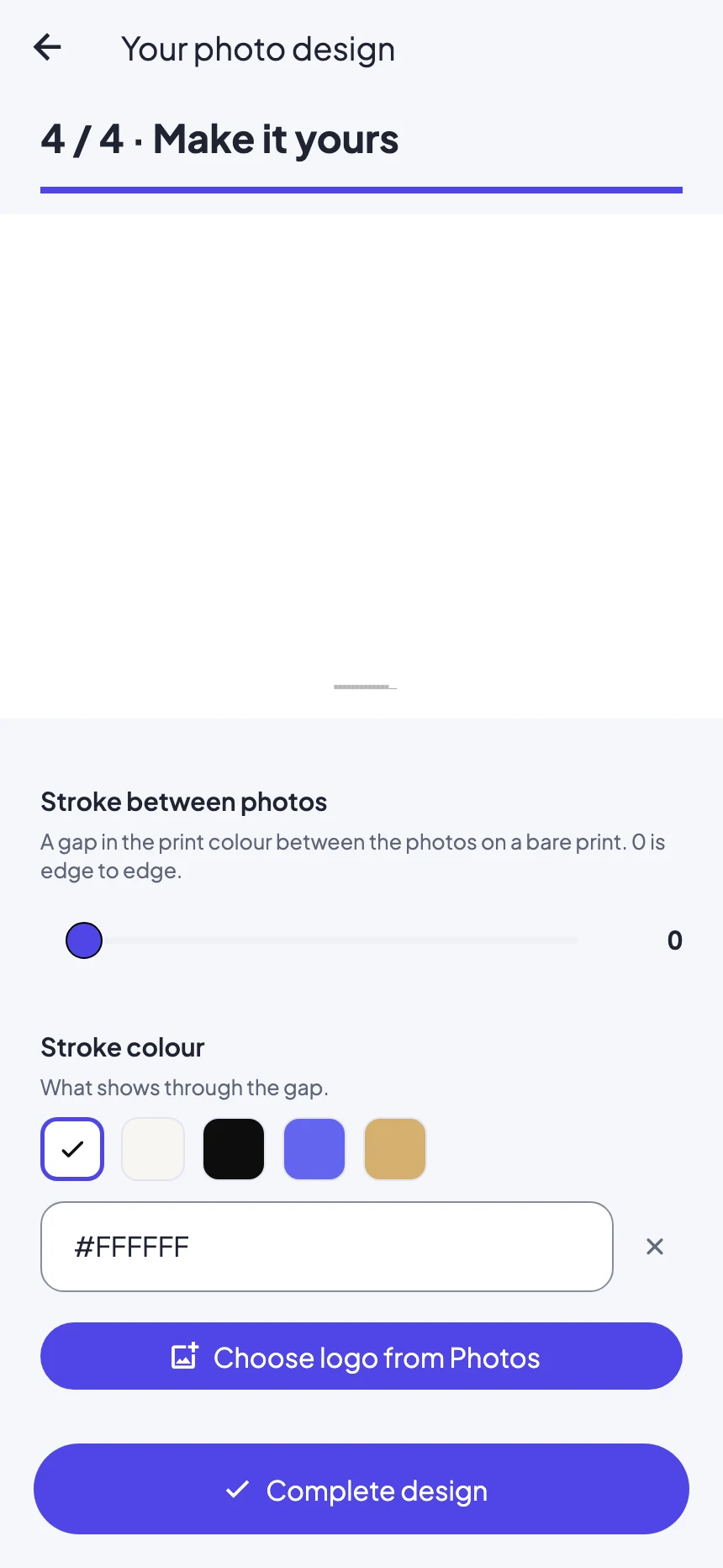
In Your photo design, select No template + logo. Continue through the canvas and arrangement choices to Make it yours. This is separate from the decorative stock-logo collection in older template editors.
Choose the image
Tap Choose logo from Photos. Select your file and allow the requested photo access. If the picker fails, check the file format and size, and review photo permissions in the device Settings.
Place and size it
Drag the logo in the preview. Adjust its size and opacity with the controls below; scroll if needed. Leave room for faces and avoid the very edge of the print.
Complete and check
Finish the design step and take a calibration photo. Check the logo on the final image, not just the empty preview. Return here and use Replace logo if you want another version.
Real app screens with numbered highlights. Tap Enlarge to inspect a screen. Example content; labels can vary by app version.
Helpful to know.
Not appearing?
Make sure No template + logo is selected and an image was successfully chosen. A nearly transparent logo or one placed outside the useful image area can look missing.