 createbooth
A printer and connection supported by the app, matching paper and eligible access.
Match the photo design to the paper
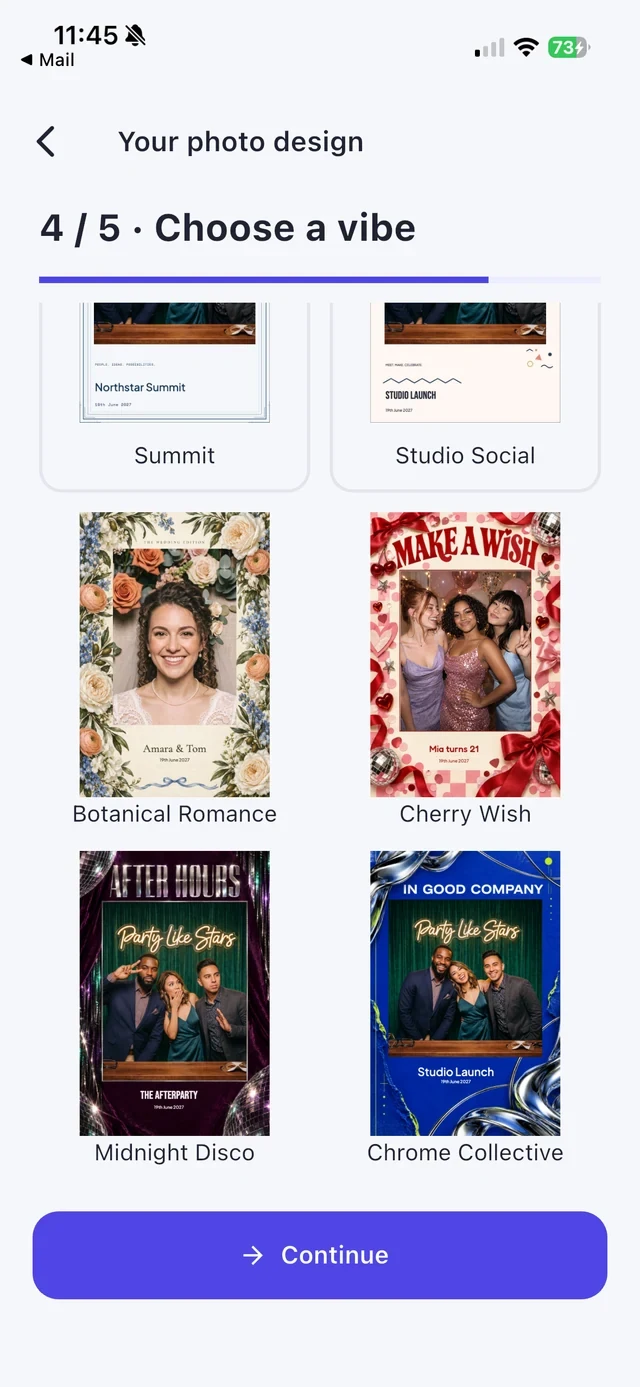
Choose the print canvas and orientation in Your photo design first. Confirm your printer’s supported paper size; a strip layout does not mean every printer can cut strips.
Enable printing intentionally
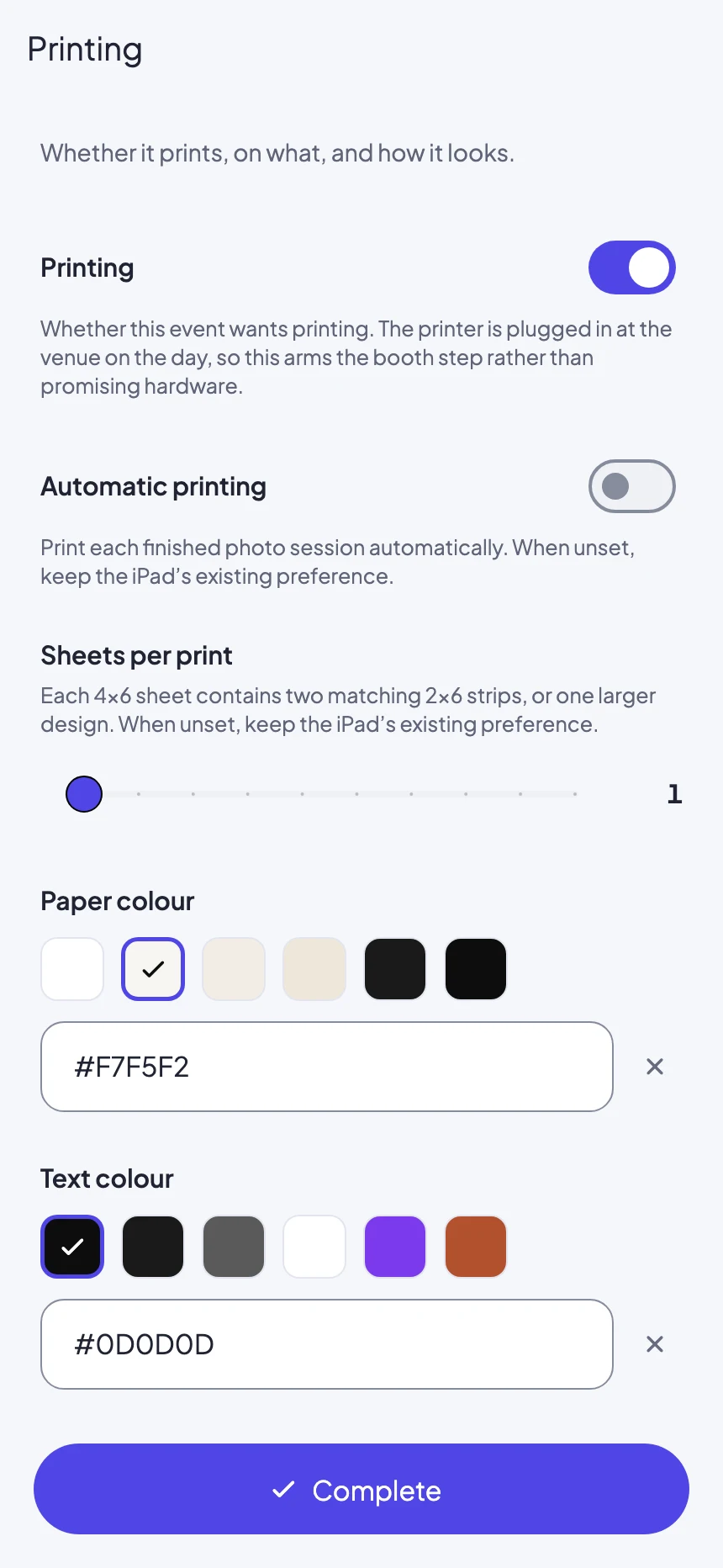
Turn printing on during event setup, then open the printer connection flow. Follow the connection options available for your hardware. Do not assume a USB printer becomes compatible just because it plugs into a hub.
Check network permissions if used
For a network printer, put the devices on the required network and allow Local Network access when requested. Venue guest Wi-Fi can isolate devices even when both show the same network name.
Print a real calibration capture
Load paper and ink or ribbon. Take a photo and use the test-print option. Check margins, colour, cropping and the event title, then adjust the design or printer options if needed.
Prepare for the queue
Keep spare supplies nearby and give finished prints somewhere to land. If the printer disconnects, pause and reconnect between guests. Digital capture and sharing can still be useful while you resolve printing.
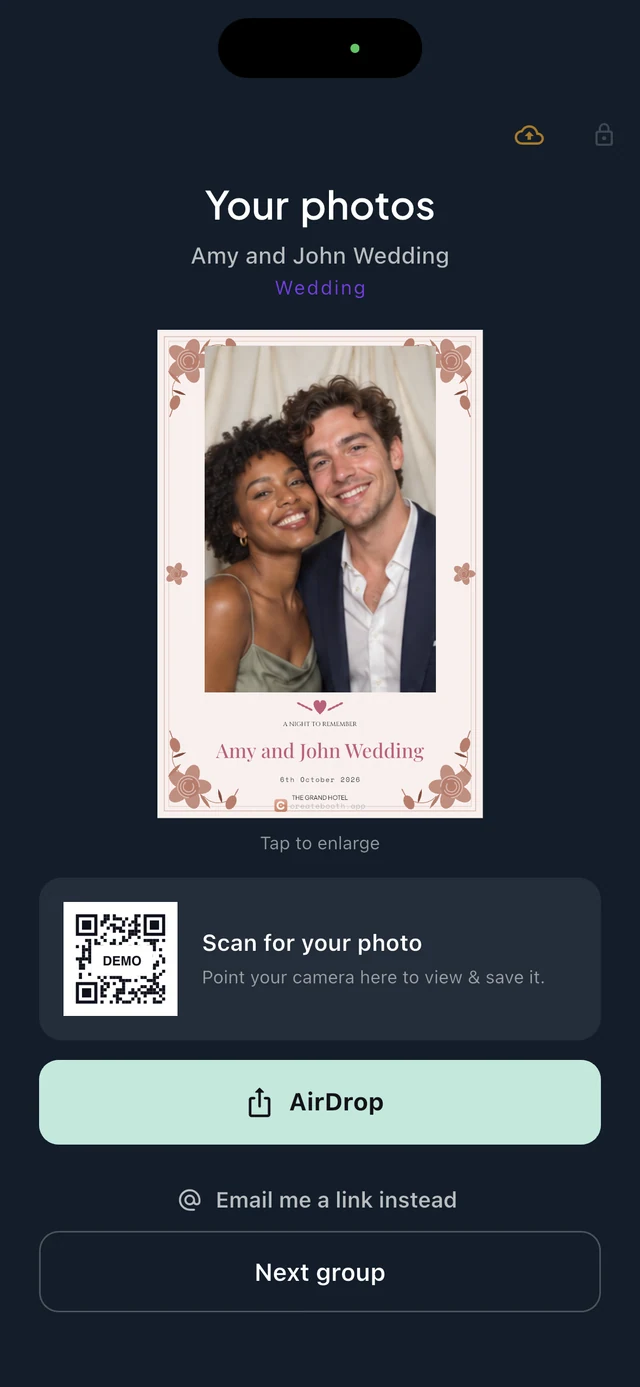
Real app screens with numbered highlights. Tap Enlarge to inspect a screen. Example content; labels can vary by app version.
Helpful to know.
Test at the venue
A printer that works at home may not be reachable on a venue network. Recheck the exact network and hardware before guests arrive.