 createbooth
For USB-C iPads: a compatible USB-C hub with PD input, a charger or PD power bank, and camera data accessories.
Check every port’s job
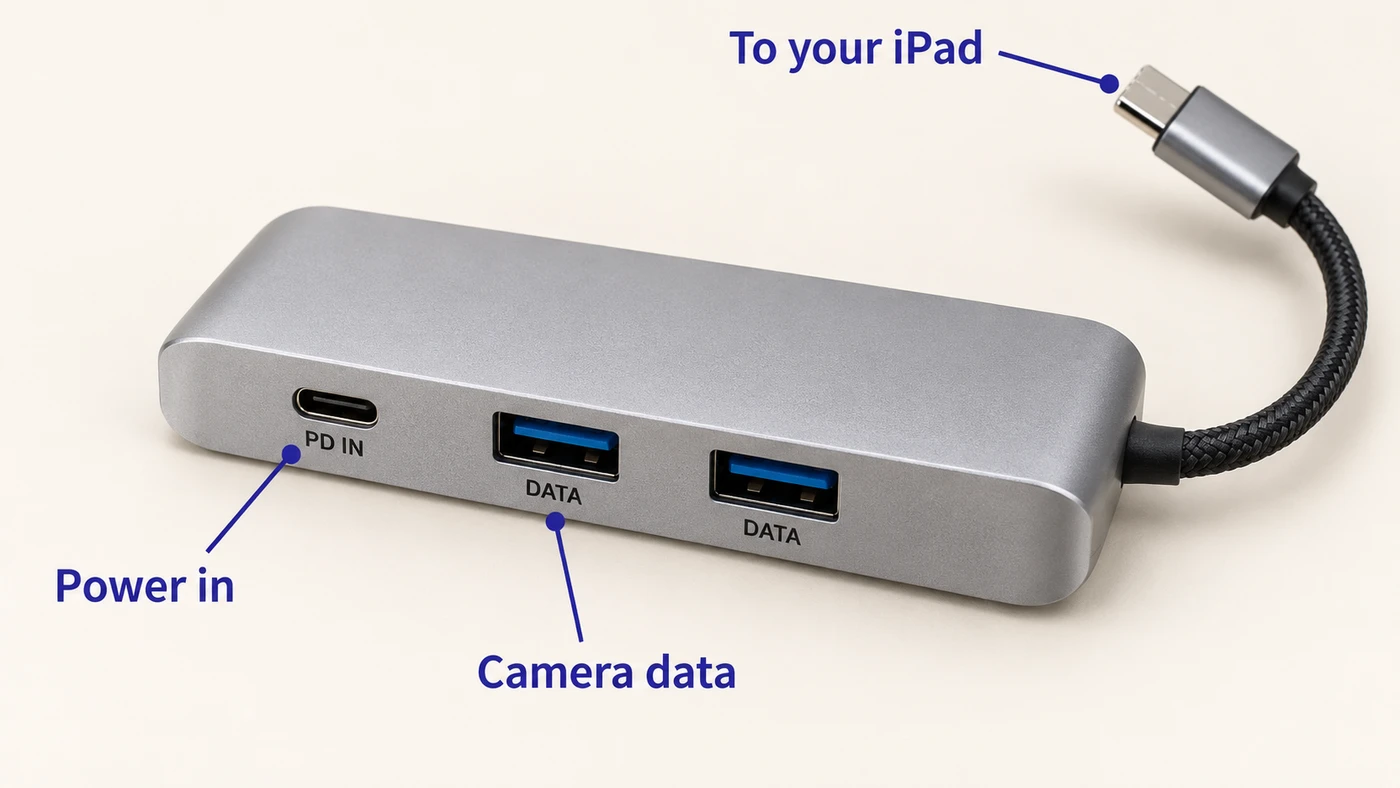
Look for an upstream connection to the iPad, a USB-C PD power-input port, and a downstream USB data port. A port labelled PD may accept power only. Do not plug the camera into a charge-only input.
Connect the power path
Connect your charger or power bank to the hub’s PD input. Connect the hub’s upstream cable to the iPad. Check the iPad recognises power. Hub overhead and attached accessories reduce the power available to the iPad.
Connect the camera data path
For USB control, connect the camera’s data cable to a downstream data port on the hub. For HDMI, connect camera → HDMI capture card → hub data port. The capture card, not a plain HDMI adapter, converts the video input.
Power the camera separately if needed
The hub charging the iPad does not establish that it can power or charge your camera during use. Use the camera’s approved power method, such as a compatible coupler or a separate supported USB power connection. Never use an improvised battery adapter.
Run a sustained test
In CreateBooth choose the correct camera connection, take captures and check both batteries. Pause before changing power: a hub can briefly disconnect the camera when power negotiation changes. Have charged spare camera batteries as a fallback.
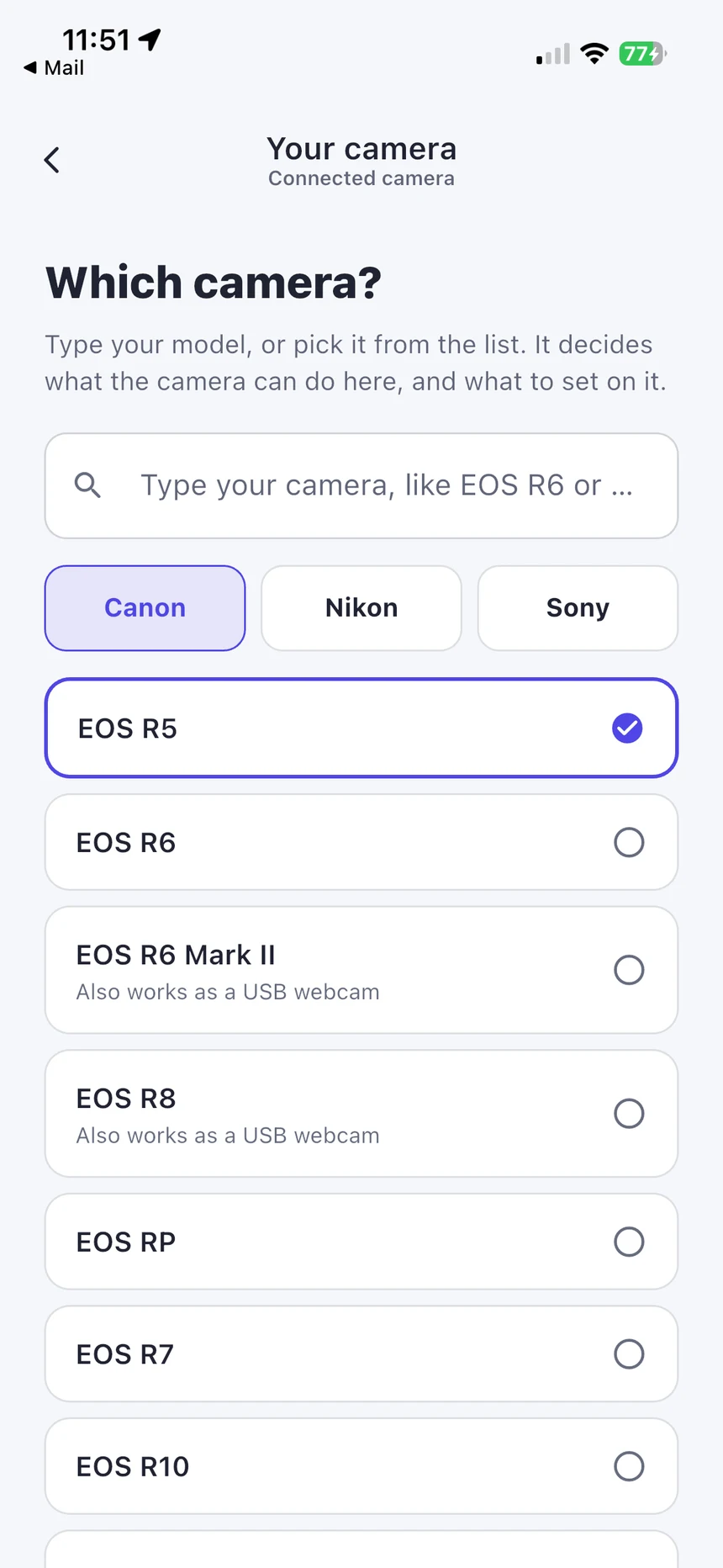
Real app screens with numbered highlights. Tap Enlarge to inspect a screen. Example content; labels can vary by app version.
Helpful to know.
USB port already occupied on the camera?
If the camera’s only USB port is carrying data, do not assume you can add a second charging cable. A manufacturer-approved DC coupler or a different supported connection may be needed.
Lightning devices need a different adapter
Use an Apple-compatible powered camera adapter for that device and confirm the connection is supported by CreateBooth. The diagram here is specifically for USB-C iPads.
Official instructions
Check the guide for your exact device and software version.
Apple: connect accessories with USB-C ↗Powered USB-C hub example explained by Focusrite ↗