 createbooth
Your event settings, a tested camera and internet for cloud features.
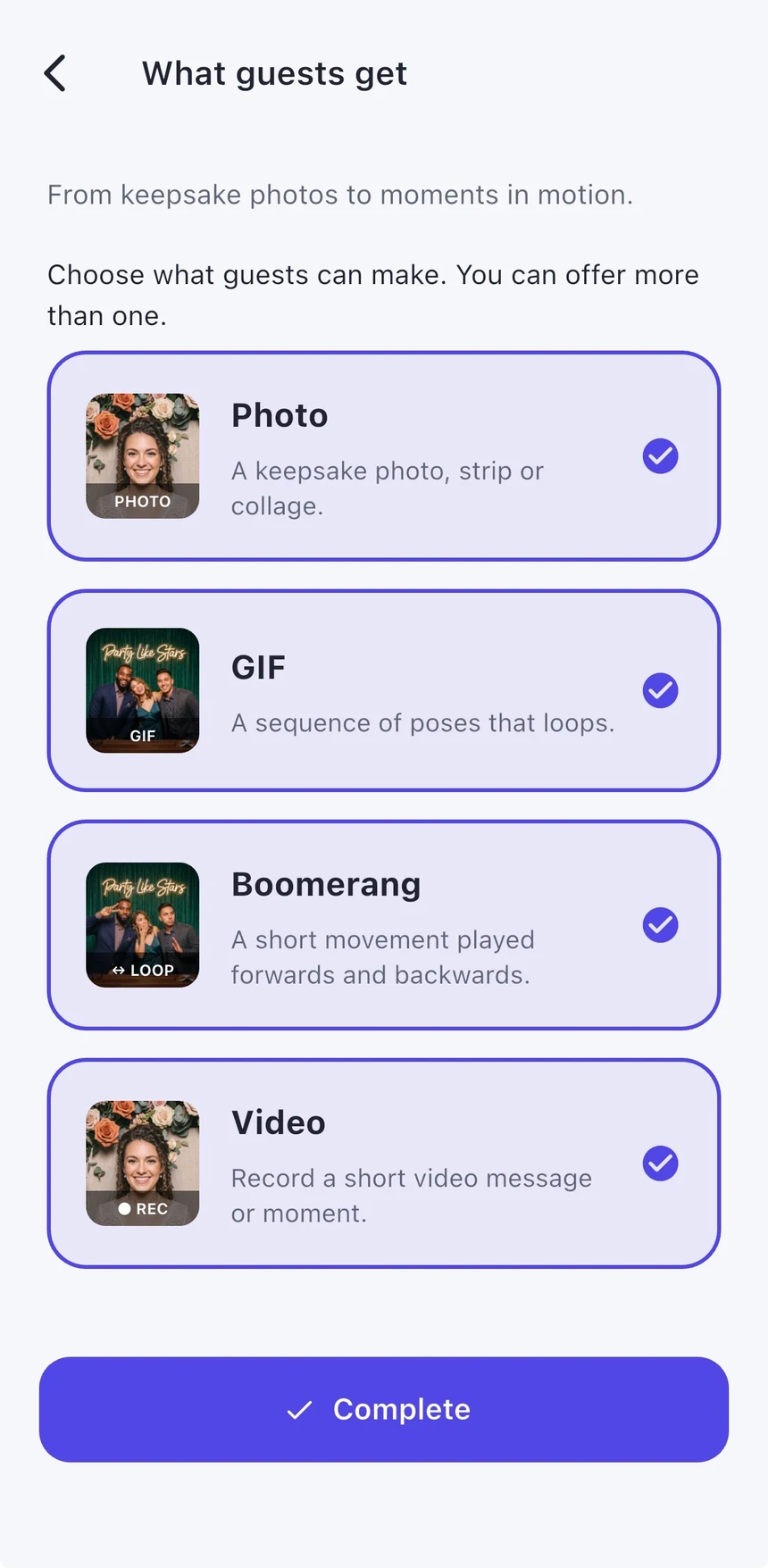
Choose capture types and orientation
Select the captures guests can make. When Photo is enabled, complete the photo design and its orientation. For a booth without Photo, complete the orientation choice if shown. Keep the mounted device in that orientation.
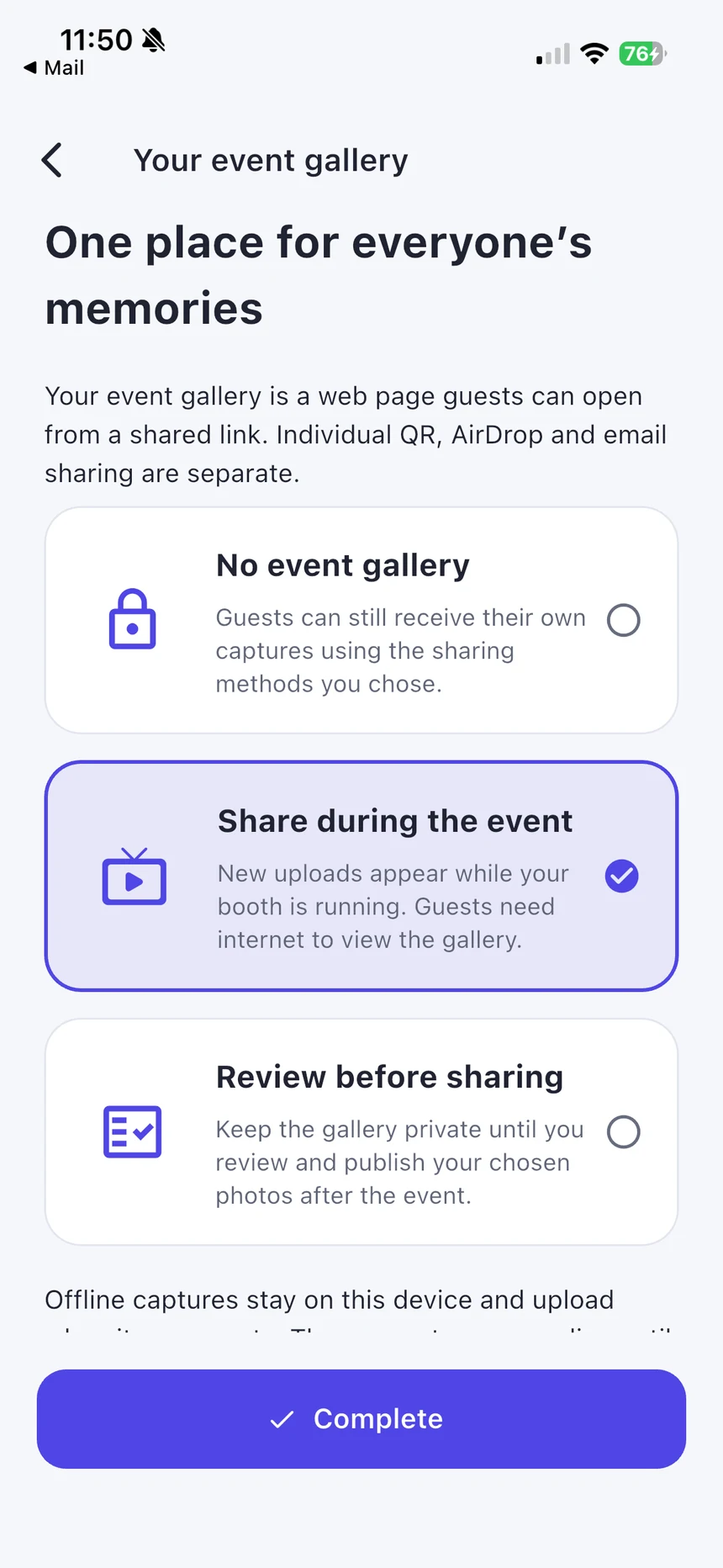
Make an explicit gallery choice
Open Event gallery. No event gallery keeps captures out of an event gallery. Share during the event lets eligible captures appear as they upload. Review before sharing lets you choose what to publish afterwards. Live gallery features require eligible Premium access.
Set up the extras you actually want
Enable guestbook message types and printing only if you intend to offer them. Choose your sharing methods and protect the booth controls with a PIN. AI can use credits in a free event; Premium-only extras still need their own eligible access.
Run the camera test
Check framing with a real person, not an empty room. Try the enabled capture types, sharing and a test print. Confirm the device stays charged with all accessories connected.
Start and supervise
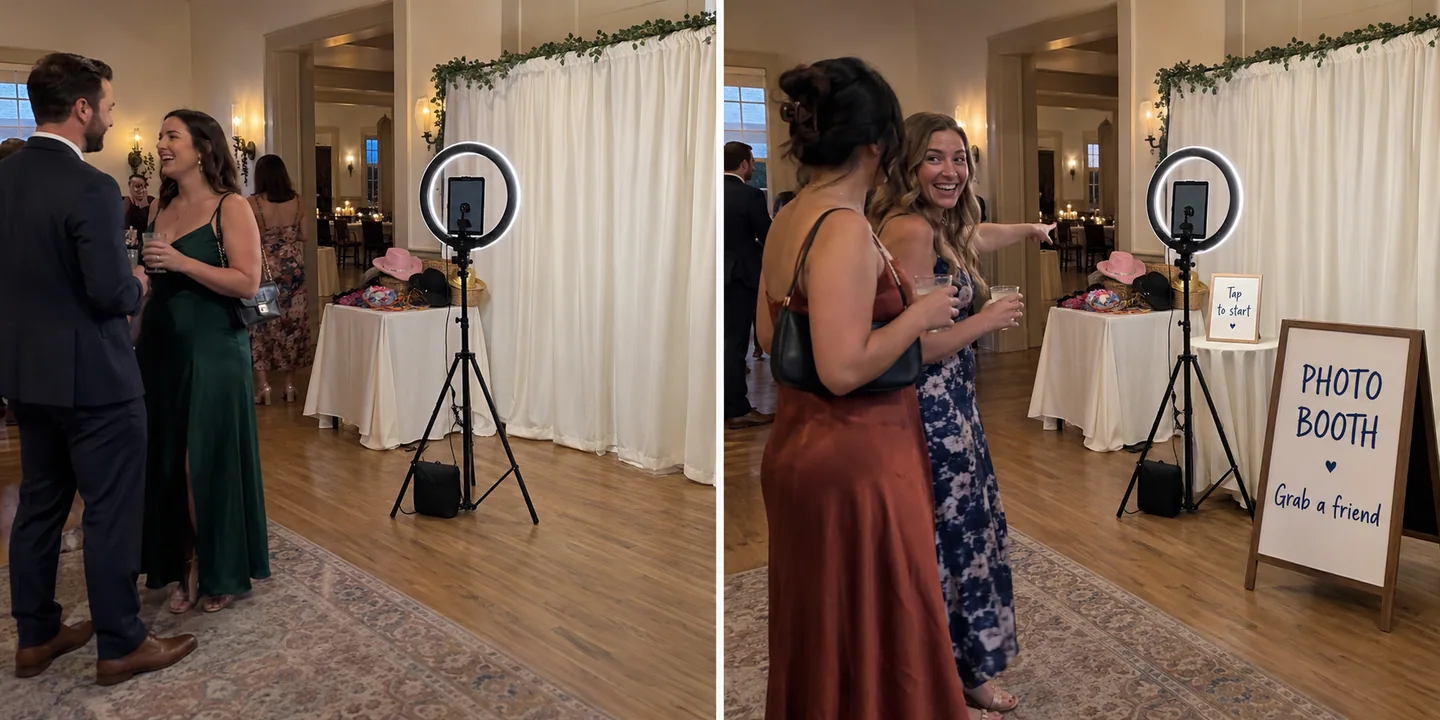
Open the guest booth. Put a short invitation beside the screen. If you need a break, enter the admin controls and pause the event; return to the same event to resume. Check pending uploads before finishing. “Run it again” starts another run, so review its settings rather than assuming it resumes the old one.
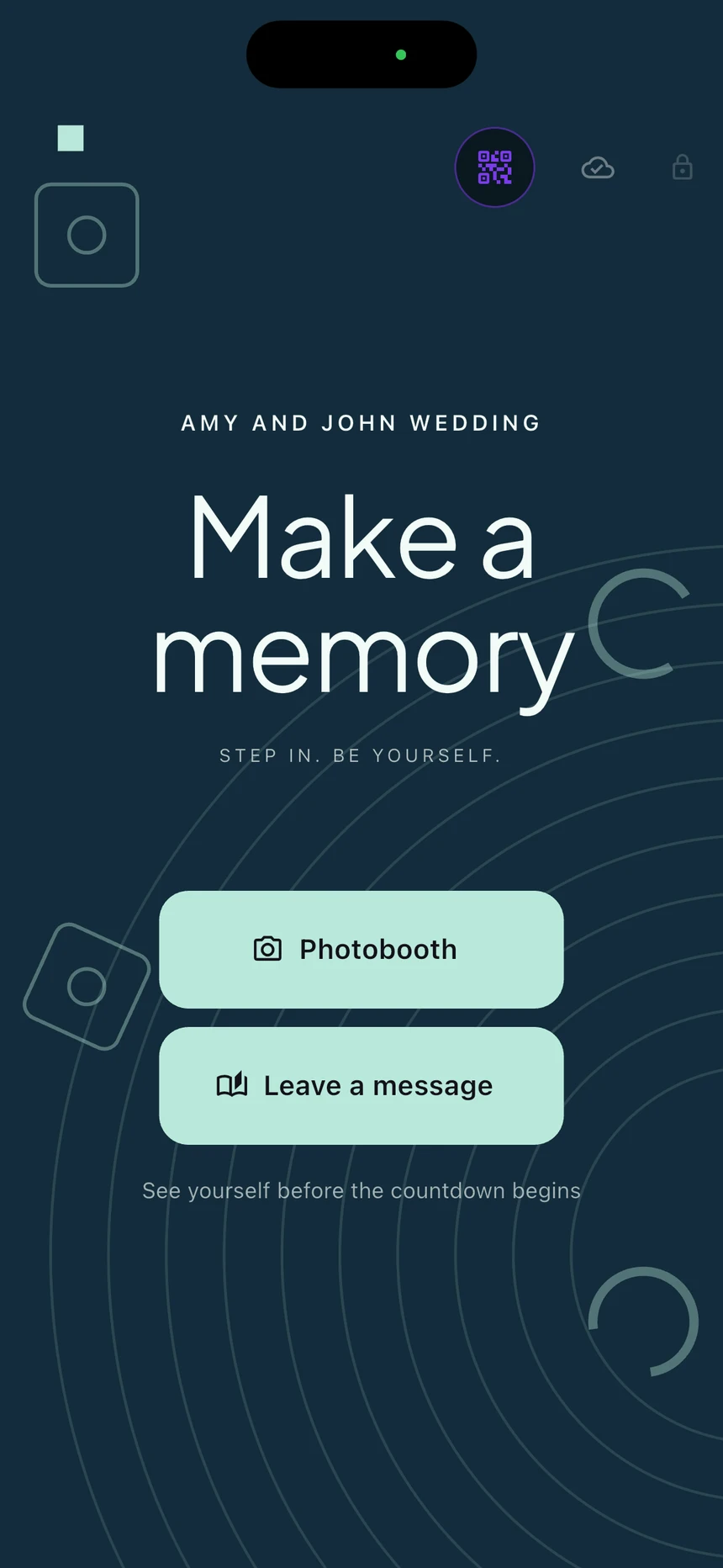
Real app screens with numbered highlights. Tap Enlarge to inspect a screen. Example content; labels can vary by app version.
Helpful to know.
Internet and local capture are different
Supported local captures can continue through connection loss, but AI and online sharing need a connection. Keep the app and local files available until uploads finish.
A live gallery is a sharing decision
Tell guests when images are shared live. For a more private event, choose review before sharing.