 createbooth
Eligible Premium gallery access, uploaded captures and internet.
Open the event and check uploads
Go to My events and select your event. Review pending uploads before publishing. A photo saved on the booth device is not necessarily available on the website yet.
Review what will be visible
Open Publish gallery or the existing gallery management action. Choose All captures or Select captures, then remove anything you do not want guests to see. Keep private guestbook content separate from the ordinary gallery.
Choose the page design
In Choose a look, pick a gallery appearance and a photo layout. Continue to check the gallery title and optional note for guests. Preview the page before confirming.
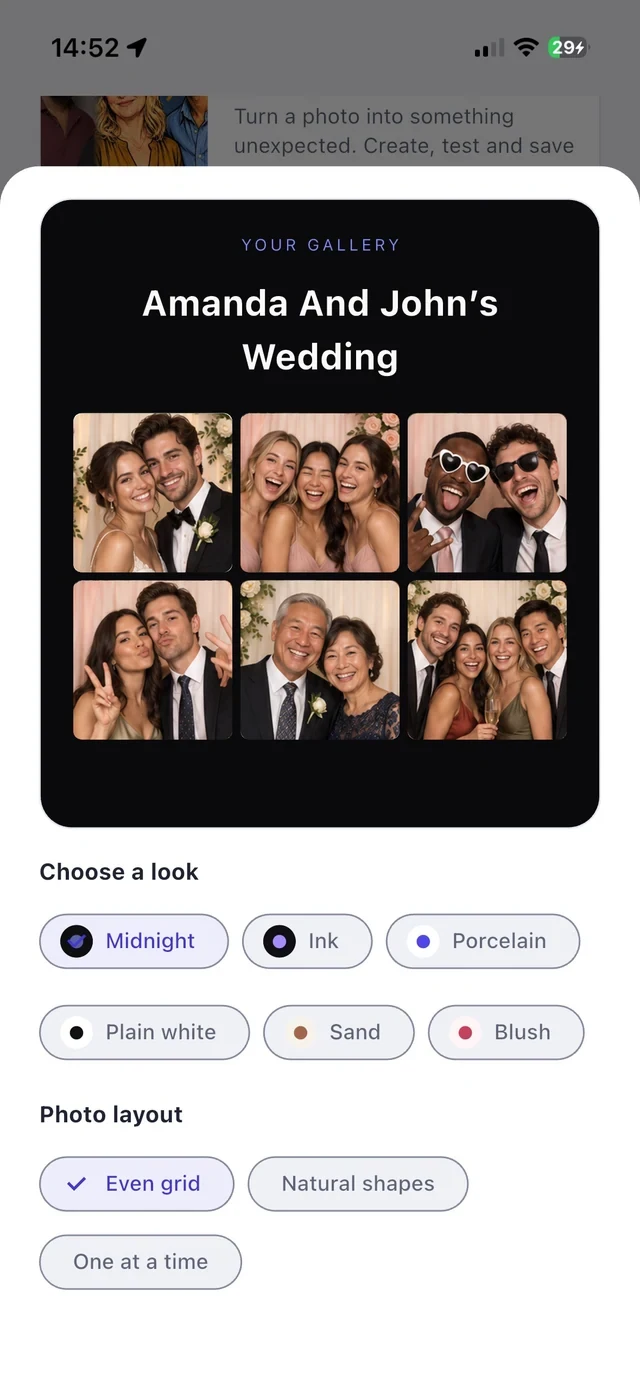
Check duration and publish
Review the actual live-until date. The current initial gallery window is 30 days; an existing gallery uses its remaining time. Unpublishing and republishing do not restart that window. Confirm publication explicitly.
Open the link as a guest
View the published gallery and check it on another device before sharing its link. Anyone with an unprotected gallery link can view its published photos. Use the event’s management controls to unpublish or change the selection later.
Real app screens with numbered highlights. Tap Enlarge to inspect a screen. Example content; labels can vary by app version.
Helpful to know.
Need more time?
Use the existing gallery extension option and check the new expiry date after purchase. Save your own copy before hosting ends.
Gallery already live during the event?
Review its current contents and remaining hosting period; do not treat the end of the event as a new hosting window.