 createbooth
Guestbook enabled for an eligible event; microphone access for audio or video.
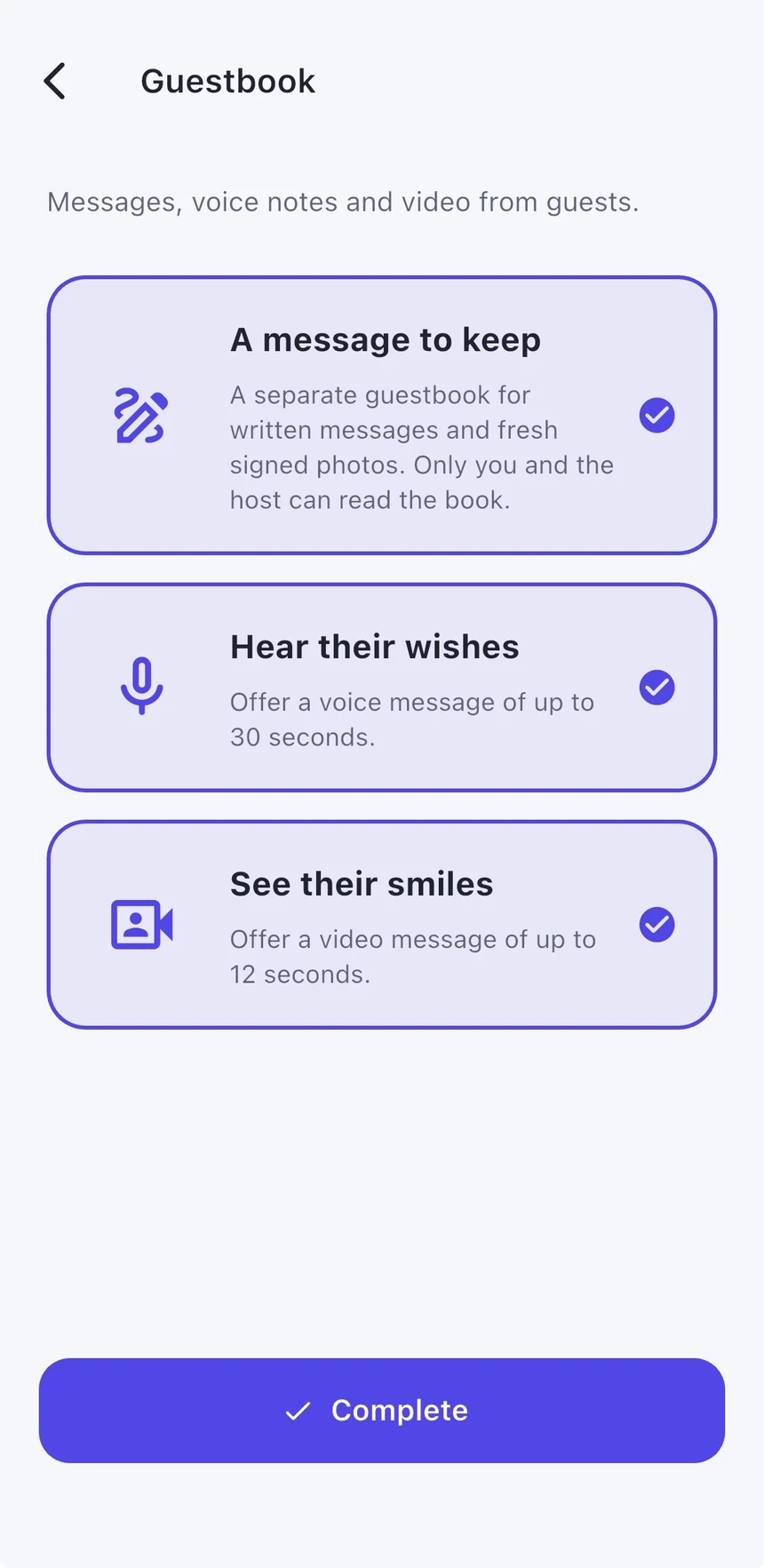
Choose the message types
During setup, enable A message to keep. Add voice or video if you want them. Only enable types you are comfortable inviting guests to use, and test the microphone in the room.
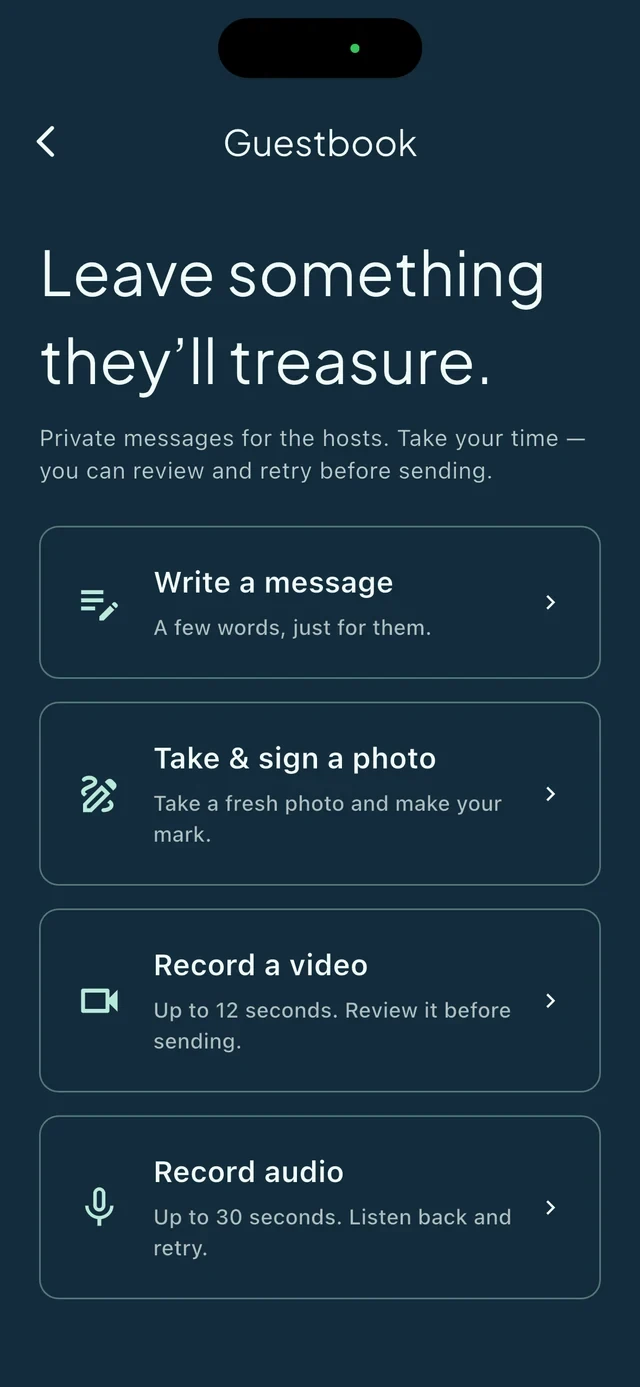
Invite guests to leave something
The guest booth offers Leave a message when guestbook is enabled. Guests can choose the available message types and review before sending. A fresh signed photo belongs to the guestbook rather than the ordinary public gallery.
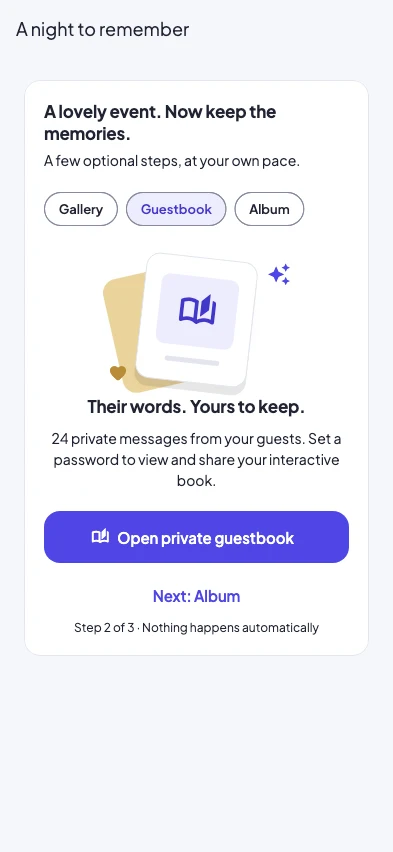
Open the host’s guestbook
After the event, open it from the event details. Check how many entries were received and whether uploads are still pending. Listen to recordings and inspect signed photos before sharing access.
Protect and view the web book
In Private guestbook, enter a password of at least 10 characters and tap Protect guestbook when prompted. Then open the interactive web view. Share the intended link and password privately. Password and sharing controls are available after at least one message uploads; changing the password signs out existing viewers.
Keep the messages before access ends
Check the retention or availability notice and use the guestbook’s own export/download options where offered. Ordinary album ZIPs do not include private guestbook messages. Save any separate exports somewhere you can find again.
Real app screens with numbered highlights. Tap Enlarge to inspect a screen. Example content; labels can vary by app version.
The host handover panel shown here is the 2.1 layout. In 2.0, open the existing Guestbook action from your event.
Helpful to know.
Guestbook missing?
Check it was enabled for this event and that entries were actually submitted. Voice and video require the relevant permissions. Wait for pending uploads before assuming a message is missing.
Sharing a link is still sharing
A password adds a barrier, but people who receive access can retain copies. Do not post a host link or password publicly.