 createbooth
Enough local storage and a connection when you are ready to upload.
Check which features need internet
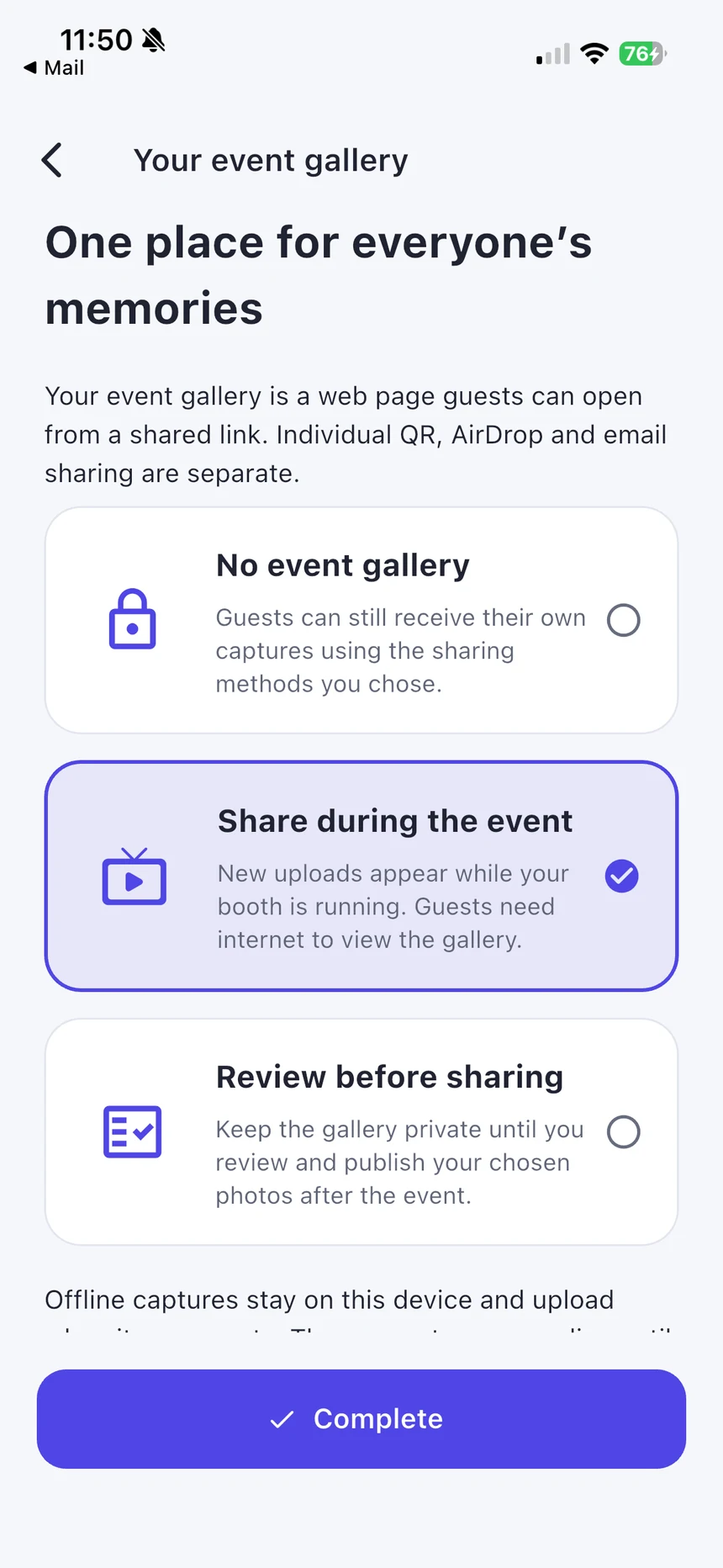
Supported local captures can be saved during a connection loss. AI generation, online galleries and link delivery depend on online services. Do not promise a working QR link until the relevant media is available online.
Keep the local originals safe
Leave the app installed and its data intact. Do not sign out, clear storage or delete local captures to fix a queue. First reconnect and let the app resume its existing upload workflow.
Inspect the status
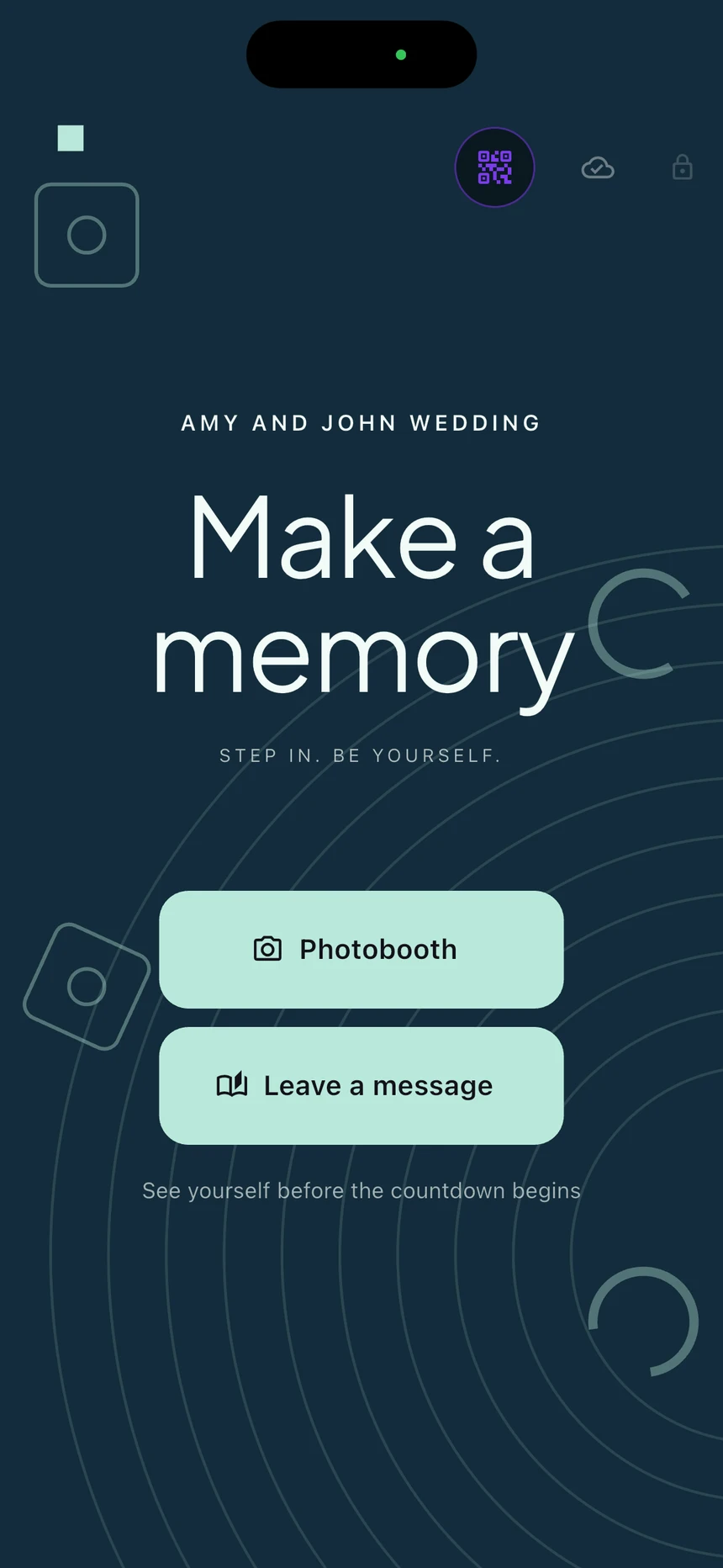
Use the booth’s upload status and Storage & Backup to review pending work or saving problems. A connection icon alone does not establish that every capture uploaded successfully.
Reconnect and verify
Keep the device powered, reopen the relevant event and allow uploads to continue. Check the online gallery for the expected captures before publishing or sharing widely.
Ask for help if saving fails
If the app reports a local-save failure, stop taking more captures until it is resolved. Send support the event and device details through Help & Support. Do not remove the only local copy while investigating.
Real app screens with numbered highlights. Tap Enlarge to inspect a screen. Example content; labels can vary by app version.
Helpful to know.
Export is not upload
Saving an album copy does not complete a pending upload or publish the event. These are separate actions.
2.1 local rescue
Newer builds may offer Export locally saved captures in Storage & Backup. It can rescue complete local files offline; missing or incomplete media still needs attention.