 createbooth
Available device storage and internet for media that is only online.
Choose the correct event
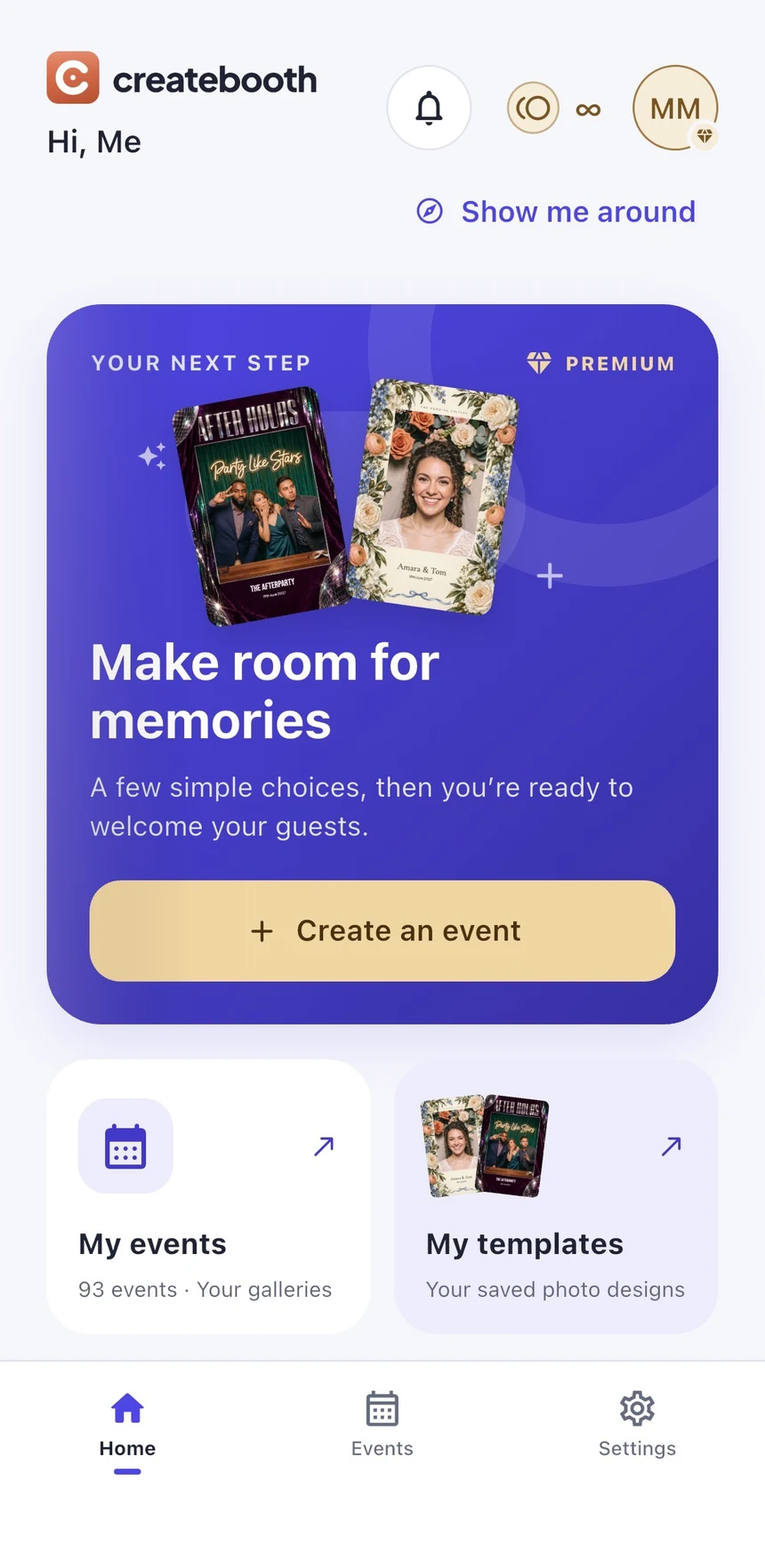
Open My events and select the event. Check pending uploads first: an online album download cannot include a capture that has not reached the server.
Prepare the album
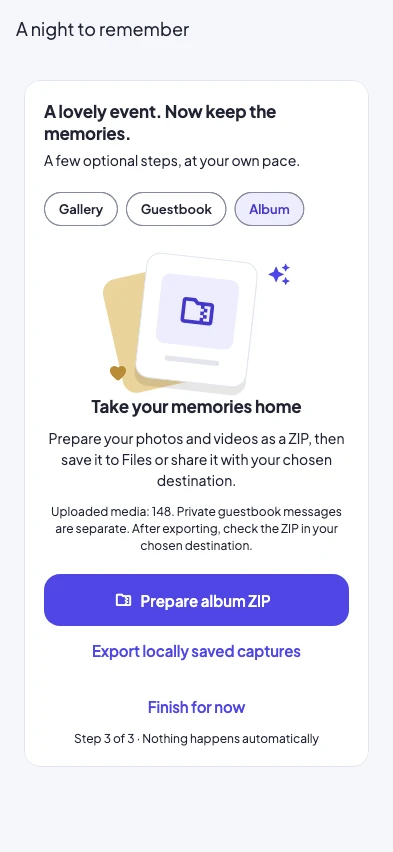
Use Download album or the album ZIP action. Keep enough free storage for the downloaded files and the archive. Larger events and videos need more space and time.
Read the result
Wait for preparation to finish. Where the app reports a partial result, retry the failed items. In older versions, verify the contents yourself: reaching the end of a progress bar is not proof every file is present.
Save the ZIP to Files
In the system share sheet, choose Save to Files and select a location you recognise. Opening the share sheet does not save the archive. Wait for any cloud-drive upload to finish if you chose a cloud location.
Open and check your copy
Find the ZIP in Files, extract it and open a selection of photos and videos. Compare what you received with the event. Keep an additional copy on a computer or another storage location for important events.
Real app screens with numbered highlights. Tap Enlarge to inspect a screen. Example content; labels can vary by app version.
The illustrated Album panel is the 2.1 finish-event layout. In 2.0, use Download album in the event’s existing tools.
Helpful to know.
Guestbook is separate
A normal photo album export does not include private written, audio or video guestbook messages. Open the guestbook to use its own available export controls.
Do not clear local data to make room
If captures are still waiting to upload, deleting app data or uninstalling can remove your only copy. Resolve saving and upload warnings first.