 createbooth
Sharing methods enabled for your event; internet for web links and email.
Choose the methods you want
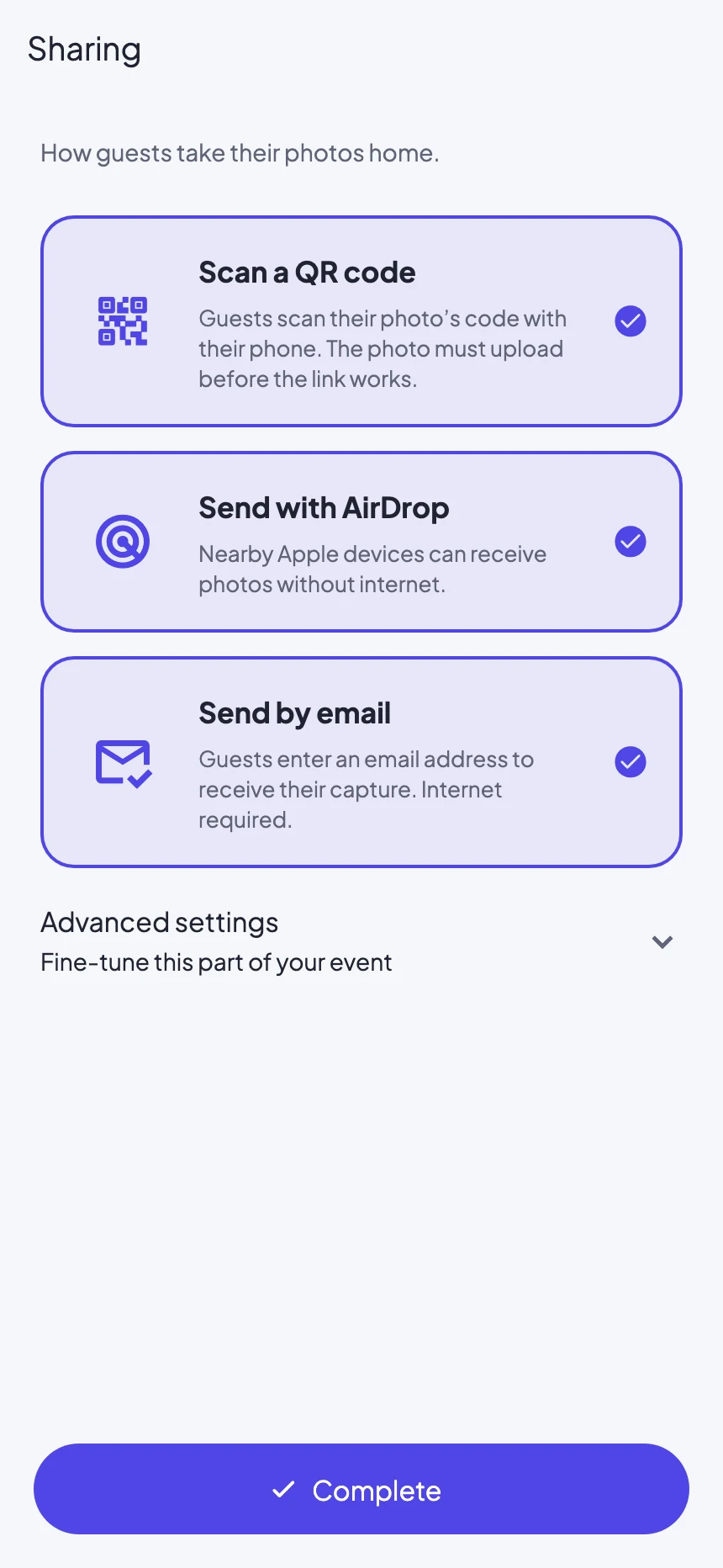
Open Sharing during event setup. Enable Scan a QR code, Send with AirDrop or Send by email. These individual photo-sharing options are separate from publishing the whole event gallery.
Test a QR link
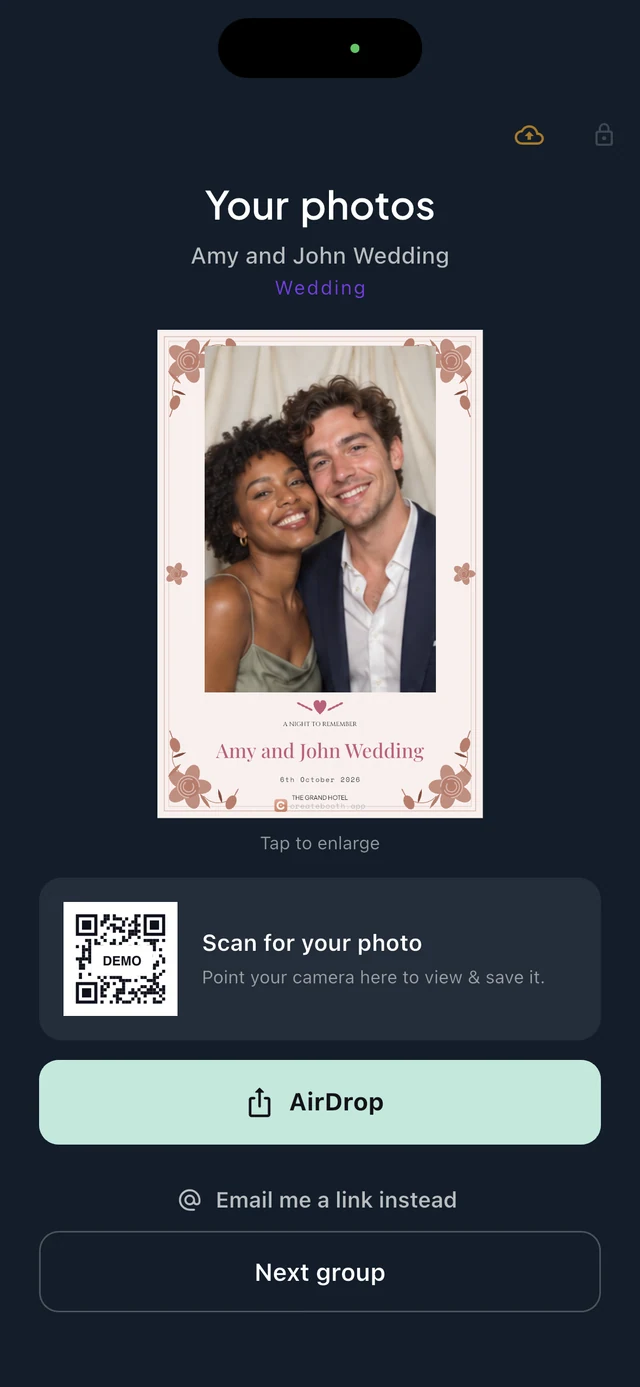
Take a test capture, wait for its upload and scan its code with another phone. Tap the QR code to enlarge it if necessary. The code points to an online page; it does not transfer a file directly.
Test nearby Apple sharing
Enable the receiving device’s AirDrop discovery for the people who need it, then use the booth’s AirDrop action and accept the transfer. The recipient must be nearby. Apple device settings and Guided Access can affect access to system sharing; test the exact setup.
Check email delivery
Enter a test address you control and wait for the message. Check junk folders if necessary and confirm the link opens the right capture. Do not repeatedly submit the same email while a delivery is pending.
Keep the next guest moving
After sharing, use Next guest or Next group to return to the booth. If uploads are delayed, keep the local file safe and explain that its online link may need time to become available.
Real app screens with numbered highlights. Tap Enlarge to inspect a screen. Example content; labels can vary by app version.
Helpful to know.
No internet?
AirDrop can transfer locally available media between nearby compatible Apple devices. Web links, email and AI processing still depend on online access.
A photo link is not the whole gallery
Guests can receive their own capture even when No event gallery is selected. Publishing the event gallery is a separate host choice.