 createbooth
A spare iPhone or iPad, a steady stand and a corner people want to spend time in. That is a good start. A few thoughtful choices about light, space and framing can make it much better.
You do not need to recreate a studio. The aim is a booth that is easy to use, flattering enough that guests come back, and full of the personality of your celebration. Here is how we would set one up.
A ring light can do more than a fancy backdrop.
A room can feel bright while the faces in your photos look dark. Ceiling lights cast shadows below eyes, and a bright window behind guests can leave them in silhouette. Put your main light in front of people, near the camera.
A dimmable ring light is a practical DIY option because it can sit around or just above the phone or tablet. Start around eye level or a little higher, turn it down if people squint, and check the result on the actual device. If glasses reflect the ring, try raising or slightly offsetting the light. Keep light colours consistent rather than mixing a very blue lamp with orange room lighting.
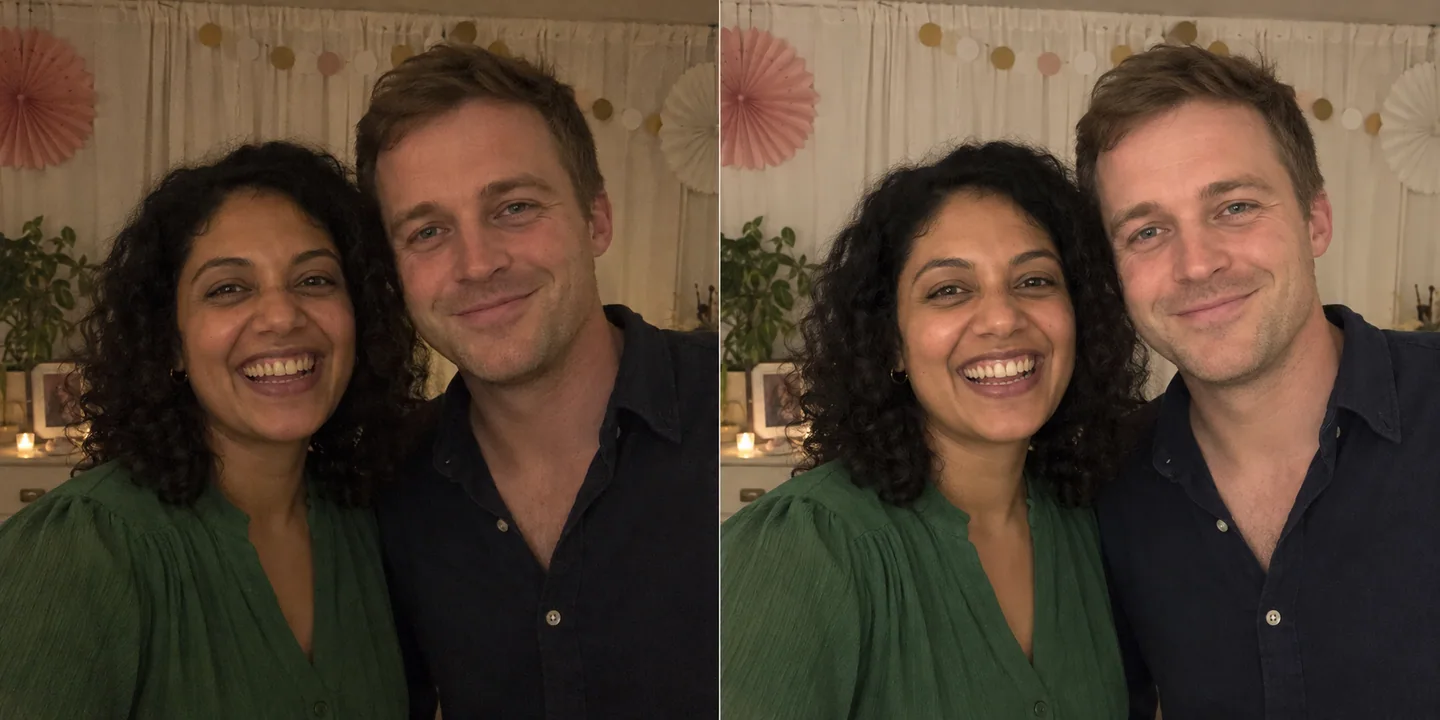
A ring light is optional if you already have soft, even light. Near a window, face towards the light and avoid harsh direct sun. At an evening party, test again once the room is dimmed. Coloured dance-floor lights can be fun in the background, but unpredictable on faces.
Apple notes that low-light Night mode captures can take several seconds and benefit from a steady device. Do not assume the same mode is available inside a booth app: improve the light and test in CreateBooth itself. Apple’s low-light guidance ↗
Open corner or enclosed booth?
Think about the kind of interaction you want, as well as the room you have. These are tendencies, not rules—your guests, music and layout will shape what happens.
Enclosed: a little world of their own.
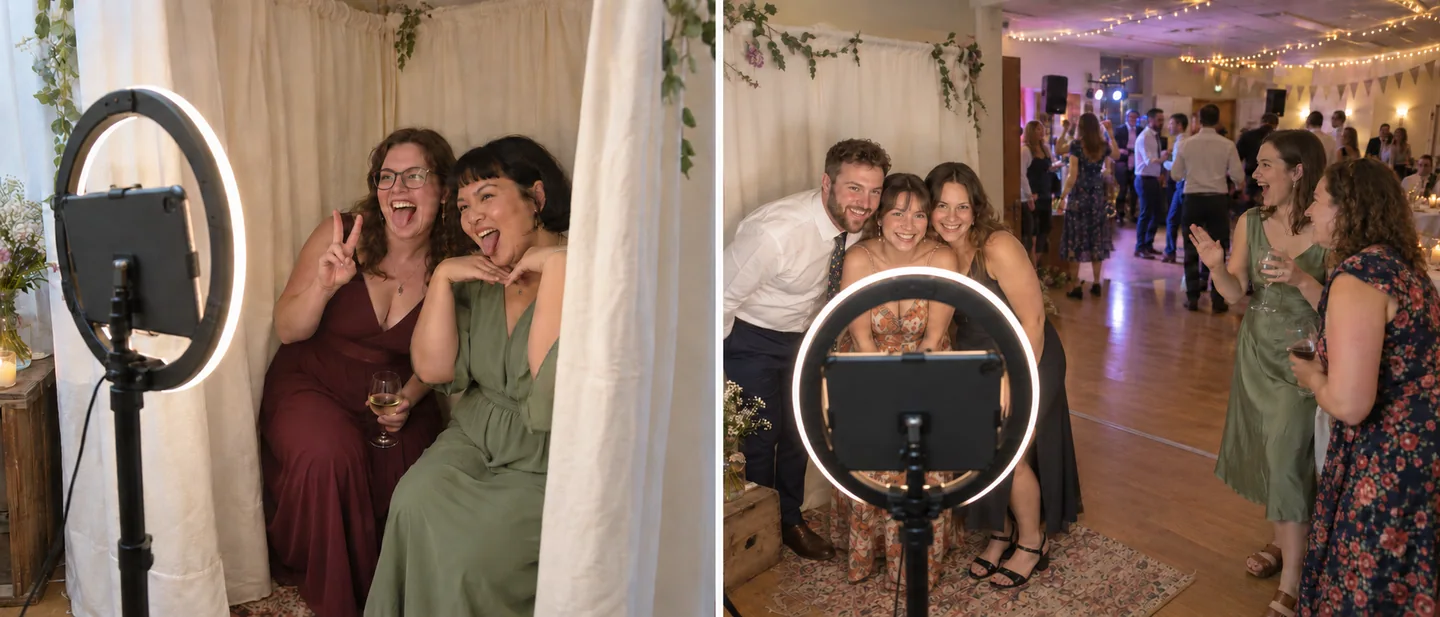
Curtains or side panels can help camera-shy guests relax without an audience. A more private space may encourage silly poses, personal messages and playful moments. It also gives you more control over the backdrop and stray light.
Keep the entrance obvious and roomy. Avoid a cramped box that blocks access or makes it difficult for a group to get in.
Open: let the fun spill out.
When guests can see their friends using the booth, they may join in, suggest a pose or jump into the next shot. An open booth suits larger groups and brings the experience into the party.
Place it near the activity, at the edge of the dance floor rather than in the middle of it. Leave space for a queue, keep walkways clear and point the camera towards a controlled backdrop.
A useful compromise: an open front with a backdrop and two short side panels. Guests can spot the booth while the photo still has a clear, contained background. For spoken guestbook messages, a quieter corner is usually more useful than proximity to a speaker.
For faces worth keeping, start closer.
Upper-body photos are a strong starting point for a phone or iPad booth. Faces fill more of the image, so there is more detail to keep when you share or print it. A small light is also easier to use effectively over a compact group.
Full-body photos can absolutely work, especially for outfits or a bigger group. They need more space, a wider tidy background and enough light across the whole scene. At the same image resolution, faces will occupy fewer pixels than in a closer composition.

Starting points, not camera specifications. Lens choice, device, orientation and group size all change the framing. Use the preview and move the stand until it fits.
Keep the camera around face height and avoid bringing it so close that faces stretch at the edges. Move people or the stand before resorting to digital zoom. Mark the standing position with removable tape, allow headroom and try the tallest and shortest guests in your test. Offer a seated position too.
In CreateBooth, match your device orientation to the photo design. A landscape template needs a landscape composition; changing that at the last moment can crop the people you wanted to keep. Use the calibration test and inspect the finished print, not just the camera preview.
Simple backdrops usually earn their place.
A plain wall, taut fabric or an inexpensive curtain can be enough. Choose a colour that separates guests from the background. Matte materials are easier to light than shiny foil; creases and reflective decorations can become more noticeable in photos.
Make the backdrop wider than the group, not just wider than the tablet. For full-body photos, check the floor too: bags, cables and the bottom of a backdrop can all enter the frame. Secure stands, keep power leads away from feet and use venue-approved tape where needed.
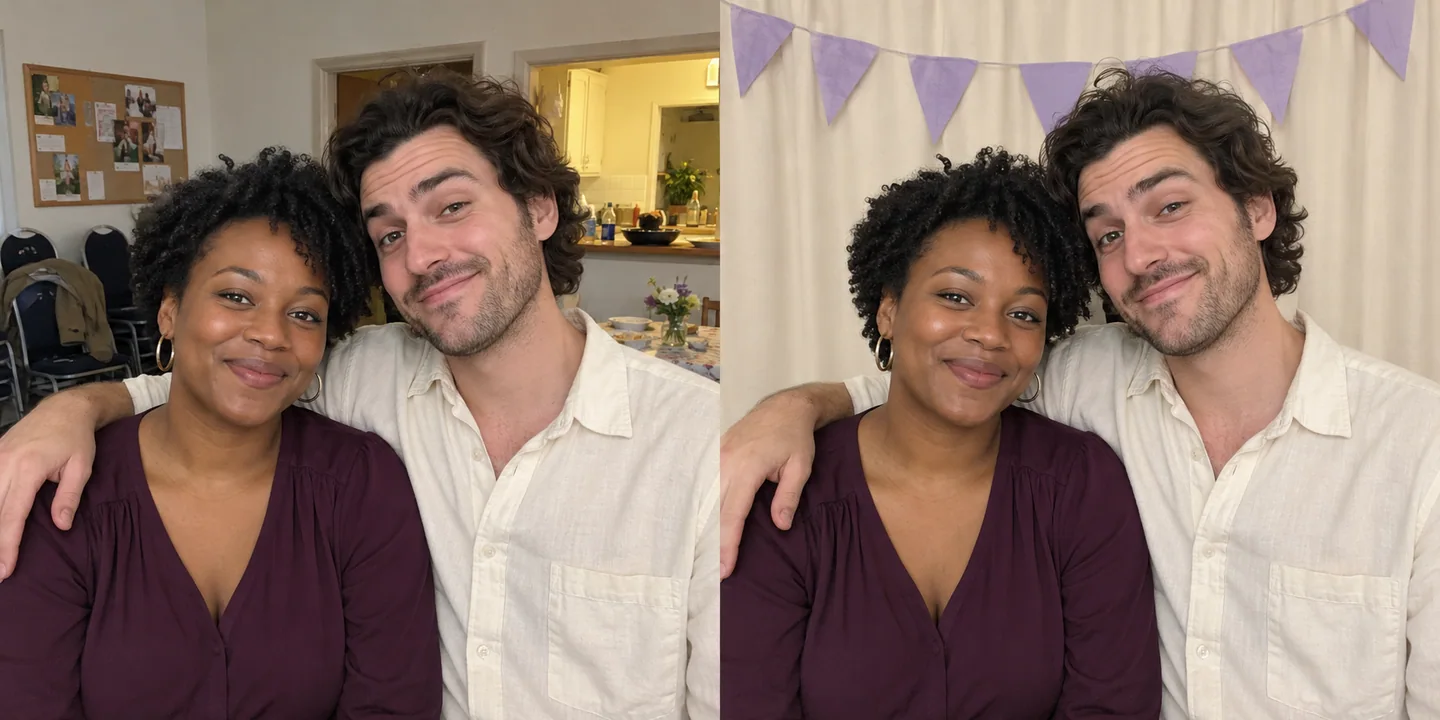
Add a few decorations that mean something to the event rather than filling every inch. Let the template and title design carry the date, names or party theme.
A digital background changes the finished image; it does not make the booth area itself more private or hide clutter from people in the room. A tidy corner and a little space behind your guests are useful either way.
Give guests a prompt, and room to play.
A small, visible selection beats a tangled box of props. Try oversized glasses, a few hats and signs guests can hold without hiding their faces. Avoid sharp edges and tiny pieces if children are around. Keep shared props clean and offer a prop-free photo too.
Simple prompts help: “Get everyone in”, “Show us your best album cover” or “One sensible photo, one silly one”. For GIFs and boomerangs, suggest a small wave or a gentle cheers instead of fast movement in low light.
Ask one friend to be the first group and show the next guests how it works. A little encouragement often makes the start feel easier.
If they can spot it, they can join in.
A tablet on a stand can look like equipment someone is still setting up. Give guests a clear invitation before they reach it: a “Photo booth” sign at the entrance or beside the queue, with a friendly line such as “Grab a friend”. Then keep the instruction at the device short: “Tap to start”.
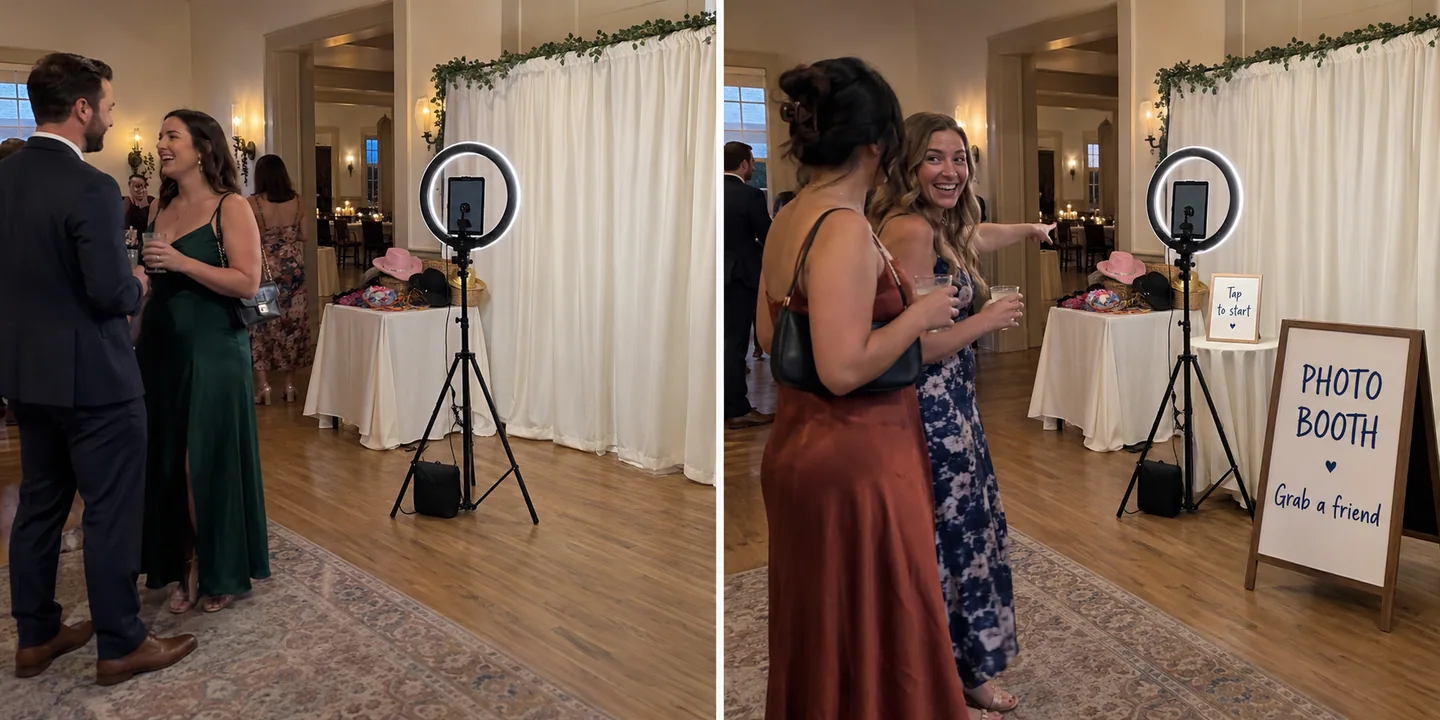
You do not need professional signage. A printed sheet in a frame, a small chalkboard or an inexpensive A-board can work. Use large, high-contrast lettering that is readable in the evening lighting, and keep signs clear of the camera view, guest standing position and accessible walkways.
Match the invitation to your CreateBooth welcome screen so the experience feels joined up. If you are collecting a guestbook, add a gentle prompt to leave a message for the hosts. Ask the host or DJ to mention where the booth is, and keep any queue instructions simple.
Print it, share it—or do both.
A printed keepsake is lovely, but it is optional. CreateBooth supports printing with compatible equipment, including AirPrint setups. Check the exact printer and connection before buying or borrowing one; a printer having Wi-Fi does not automatically make it compatible.
Run a complete test using your event’s design and actual paper. Check orientation, paper size, margins, colour and cropping. Stock spare paper and ink or ribbon, keep the output tray clear, and assign someone to help if the queue builds up.
For digital delivery, use QR or email links, or AirDrop where available. Scan a test QR with another phone and follow the whole download journey. Online galleries, uploads and email delivery need a working connection; AI generation needs internet too. Normal device-camera capture can work offline, but wait for uploads to finish before clearing local media.
Your device. Your budget. Your booth.
CreateBooth keeps the setup approachable: create an event, pick your capture types and photo design, calibrate the camera, then hand the booth over to your guests. Use the phone or iPad you already have and spend your budget where it matters most—usually a stable stand and good light.
Try a free event with 20 captures and a watermark before committing. An Event Pass gives premium access for one occasion; Premium is for ongoing access while subscribed. Current local prices and terms are shown in the app.
Premium features include designer themes and templates, customisation, beauty smoothing, background replacement, printing, the online gallery and private guestbook. Use beauty smoothing lightly if you like a natural finish; it cannot bring back detail lost to blur or poor lighting. AI looks are another optional extra and use separate credits as well as premium event access.
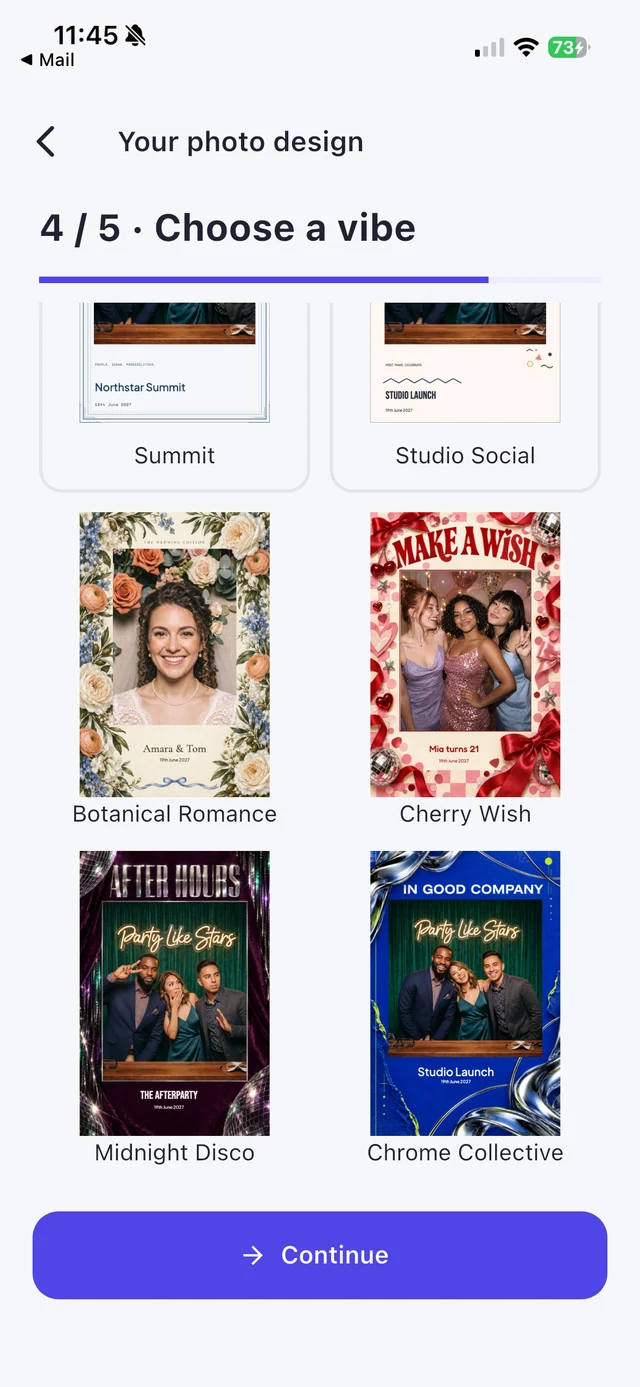
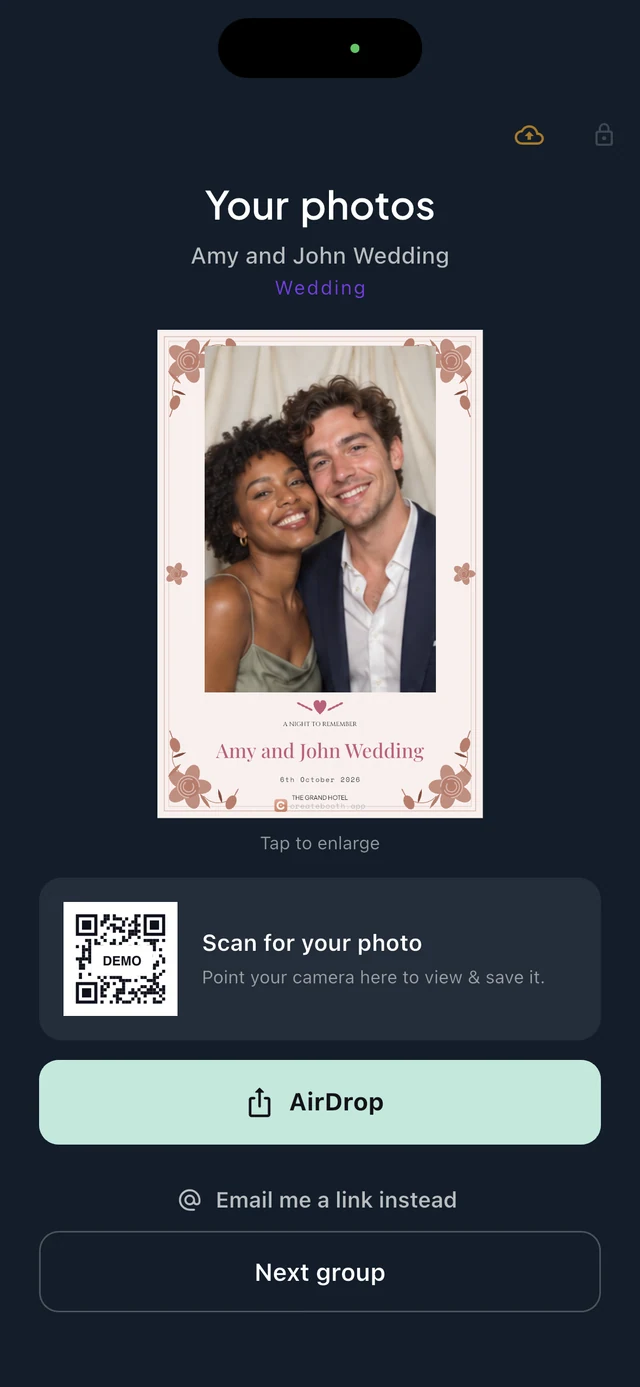
Real CreateBooth app screens, shown with demonstration photos and a sample QR code.
The ten-minute check before guests arrive.
- Clean the camera lens with a microfibre cloth.
- Secure the stand, connect power and keep cables out of walkways.
- Set the final room lighting and check faces, glasses and shadows.
- Match device orientation, framing and the selected photo design.
- Try the biggest group you expect, plus a seated guest position.
- Check that the booth sign is visible and “Tap to start” is easy to read.
- Check your event access, capture allowance and any AI credit balance.
- Take a complete test: photo, finished design, QR download and print if used.
- Check the microphone and choose a quieter spot for voice or video messages.
- Decide whether to share the gallery live or review before publishing.
- Show your helper how to reach the admin controls, then let the fun begin.
The lens-cleaning advice follows Apple’s camera troubleshooting guidance. Distances and room-layout suggestions are practical starting points from CreateBooth, not guarantees for a particular device.
Make a corner everyone comes back to.
Start with the kit you have. Test it. Then make it yours.
Try CreateBooth ↗Explore the plans →